
Release 1.19.0
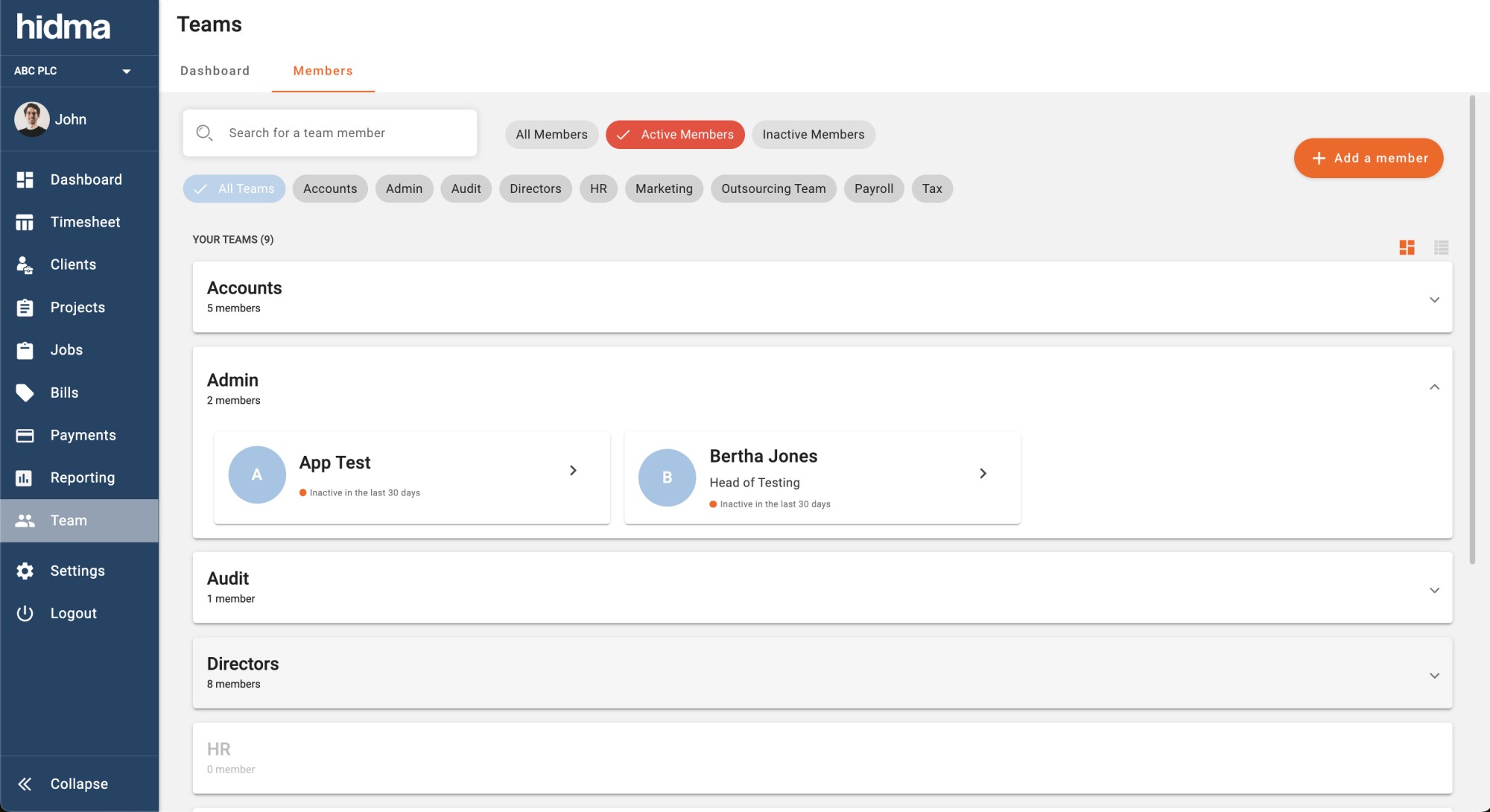
New Feature (Billing/ Payments) We are pleased to announce Multi-Currency Support in Hidma. This powerful new feature allows you to define different currency rates, which can then be applied to your bills and payments. To enable currencies and define new rates, navigate to: Settings -> Configuration -> Currencies. Scroll down to the "New Currency Rate" section of the page to select a currency and start adding new rates. You can also check the "Set a date for the new currency rate to be active" checkbox to assign a start date for your rate. An update log on this page will display all the currency rates set in Hidma so far. Currently, the base currency is locked to the Euro. Contact us if you would like to change your system's base currency. Once you have your additional currencies set up, you can start using them in User Rates, Charges, Discounts, Bills, and Payments. This means you can now define global or specific user rates using different currencies. In the absence of a global or specific rate for a chosen currency, Hidma will automatically convert the existing rates from the base currency using the applicable currency rate. You will also be able to create Charges or Discounts in different currencies. If these are then added to a bill with a different currency, Hidma will automatically convert their amounts within your bill. Whenever you create bills, payments, charges, discounts, or funds in a different currency, Hidma will note the applicable amount in your base currency and use these values to calculate project costs, account balances, and other related statistics. Please note that payment allocations will only be allowed using the currency assigned to the respective bills. New Feature (Timesheets) A new widget has been added to the Timesheets page that keeps you updated on your ongoing business hours. This feature will list a total amount of hours per client for the chosen time period. You can easily switch between a summary of all the hours accumulated during the current month or those accumulated the current week by clicking on the dropdown button at the top left corner of the widget. You can also expand the widget into a dialog which allows you to choose a custom date range for your business hours summary. A similar widget has also been added to the Manage Timesheets page. This version is almost identical to the one you can see you on the Your Timesheets' tab with the added benefit of aggregating data of all teams you have access to. Of course you can also use the Team filters and switch between Weekly hours, Monthly hours or a custom date range. You can enable or disable either of these widgets by navigating to Settings -> Configurations -> Timesheet Settings. Improvement (Teams) The Team Users' Summary page just received a significant overhaul. For starters, you are now able to choose between two views, the first splits and groups all users by the teams they belong to and displays a card for each user. This view also filters out inactive users by default however you can very easily switch between seeing all users, active users or inactive ones only. The second view introduced to this page shows a table which lists all users together so if you have permissions to view the users of more than one team, they will be all grouped together in this view. The table also shows some basic information like rates and comments if your user enjoys the right permissions. Improvement (Timesheets) The search bar in the Manage Timesheets page now allows you to search for timesheets using a Client or Project name on top of the existing User name / surname functionality. This means that you can easily identify which timesheets contain any hours relating to a specific client or project by simply typing their name in the search bar. Improvement (Timesheets) Managers viewing one of their team members' timesheets on mobile can now benefit from a button which condenses the functionality to Add a new row, Approve the timesheet (where applicable) or Reject the Timesheet (where applicable) Improvement (Billing) You can now further customise your bills by showing the total amount of minutes being billed in the bill footer. Head over to Settings -> Customisations -> Document Configurations to add this to your Bill Template. Improvement (Billing) Client addresses will now automatically get commas inserted into the address (unless they already have been added when saving the address) when you choose to display them on your bill. Improvement (Billing) Tax subtotals with a value of 0 are now automatically omitted from the Bill Footer. Improvement (Billing) Text fields for Bill rows have now been extended to a maximum of 1500 characters each. Improvement (Charges/ Discounts) Text fields for Discounts and charges have now been extended to a maximum of 500 characters each. Improvement (Jobs) By default, only active jobs are shown when first loading the Jobs summary page. This can be easily changed using the filters at the top of the page. Fix (Billing) An issue preventing a proper manual sorting of items in a bill has now been addressed Fix (Billing) The Date Range filter on the main Billing page will now show bills which have entries falling within that date range and not just those with a bill date which falls within the chose range. Fix (Billing) Grouped bill rows which are deleted from an existing bill return their unbilled time correctly into the unbilled jobs table in the Create/ Edit Bill page. Fix (Projects) An issue preventing some projects dashboards from loading in some circumstances has now been addressed. Fix (Projects) Project Recoverability is now calculated correctly and Target Recoverability is being saved correctly
How do you feel about this update?